Menus and items
Menus
A menu is a named list of items shown as one ring. Menus live in one file, %APPDATA%\ZOrbit\radial.json. Each has an id (its key in the file), a title, a list of items, and optionally a hotkey.
- A menu with a hotkey can be opened from ZBrush.
- A menu without a hotkey is a submenu: it opens when you pick an item of type
menuin another ring. - Rings work best with 4 to 12 items. They are spread evenly around the circle. Past 12, the slots start to overlap at the default Ring radius and Slot size: raise the radius or shrink the slots to make room. Studio shows a note above the item list when a menu has more than 12.
- At least one menu needs a hotkey, otherwise nothing can open the ring.
- A menu can have its own open animation (
"animation": "spiral", or pick one in the menu settings in Studio). Without one it usesring.animation. See Open animations. - A menu can fan out when it is opened as a submenu (
"fan": true, or switch on Fan out when opened from another menu in the menu settings in Studio). See Submenu.
Starter menus ship with ZOrbit: Brushes (Q), with submenus More Brushes, Tools (masking, symmetry, PolyFrame, LazyMouse and other switches, a Browser slot that opens the browser, and a Favourites slot) and SubDivide (a row of stroke subdivide sizes). They use only brushes that come with ZBrush. New installs get the Favourites slot in Tools; existing menus are not changed.
Item types
Every item does exactly one thing. Besides the action, an item can have a label (the text under the slot; if you leave it out, one is made from the action) and an icon.
| Type | What it does |
|---|---|
brush |
Selects a brush. If it is not loaded yet, it is loaded from its .zbp file first. |
alpha |
Selects an alpha. If it is not loaded yet, it is imported from its file first. |
material |
Selects a material. If it is not loaded yet, it is loaded from its file first. |
texture |
Selects a texture. If it is not loaded yet, it is imported from its file first. |
press |
Presses any ZBrush button, by its interface path. |
set |
Sets a slider or value. Needs a value. |
toggle |
Flips a switch on or off. |
steps |
Runs a list of the actions above, in order. |
menu |
Opens another ring in place of this one. |
auto |
A slot that holds a brush you pick often. ZOrbit fills it. |
tag |
Opens a fan of every installed item that carries a tag, or the Favourites tag: brushes first, most used first, then alphas, materials and textures. |
browser |
Opens the browser on one of its tabs, optionally on one tag. |
Brush
{"brush": "ClayBuildup"}
{"brush": "Inflat", "label": "Inflate"}
The name is the brush's name in ZBrush (the file name without .zbp). Spaces and capitals do not matter when ZOrbit looks the file up. The slot's icon is the brush's own thumbnail. If ZBrush already has the brush loaded, it is simply selected. If not, ZOrbit looks for a .zbp in your ZBrush brush folders and loads it. If it finds none, the pick is logged as "NOT loaded in ZBrush and no file known".
Alpha, material and texture
{"alpha": "Alpha 058"}
{"material": "SkinShade4", "label": "Skin"}
{"texture": "Txtr01"}
The name is the file's name without its extension. Spaces and capitals do not matter when ZOrbit looks the file up. If two folders hold a file with the same name (capitals and spaces in the name are ignored), the first folder searched wins. ZOrbit searches these folders, in order:
- ZBrush 2026 and newer:
ZStartup\Alphas,ZStartup\MaterialsandZStartup\Texturesin your user folder (shown as My Alphas, My Materials and My Textures), then the installation'sZData\Alphas,ZData\MaterialsandZData\Textures(shown as ZBrush), then itsLightbox\Alphas,Lightbox\MaterialsandLightbox\Textures(shown as Lightbox). - ZBrush 2022 to 2025:
ZStartup\Alphas,ZStartup\MaterialsandZStartup\Textures, then the installation'sZData\...folders, then itsZAlphas,ZMaterialsandZTexturesfolders.
Alphas can be .psd, .bmp, .jpg, .png or .tif files. Materials are .zmt files. Textures can be .psd, .jpg,
.png, .bmp, .tif or .exr files.
If ZBrush already has the item loaded, it is simply selected. ZOrbit looks for a button with its name (Alpha:<name>,
Material:<name> or Texture:<name>). If there is none, ZOrbit loads the file with Alpha > Import, Material > Load
or Texture > Import, then selects the item.
Material > Load replaces the material in the currently selected material slot, the same as ZBrush does when you load one yourself. Select the slot you do not mind overwriting before you pick a material that is not loaded yet.
Thumbnails: a material uses the icon stored in its .zmt file. A few old MatCap files have none, and they show the
placeholder. An alpha or texture uses its image file. EXR textures have no thumbnail, so they show the placeholder too.
Thumbnails are cached in %LOCALAPPDATA%\ZOrbit\thumbs.
ZBrush 2022 to 2025 get these through the ZScript plugin. Until you update it in Studio > Settings > Older ZBrush > Update, the old plugin skips them.
Press
{"press": "Tool:Masking:Clear", "label": "Clear Mask"}
An interface path is the chain of palette and button names, joined with colons, as ZBrush shows them. Capitals do not matter. Studio suggests common paths as you type.
Set
{"set": "Draw:Draw Size", "value": 64}
{"set": "Stroke:SubDivide Size", "value": 1.25, "label": "1.25"}
value is a number.
Toggle
{"toggle": "Transform:Activate Symmetry", "label": "Symmetry"}
{"toggle": "Stroke:LazyMouse"}
Steps
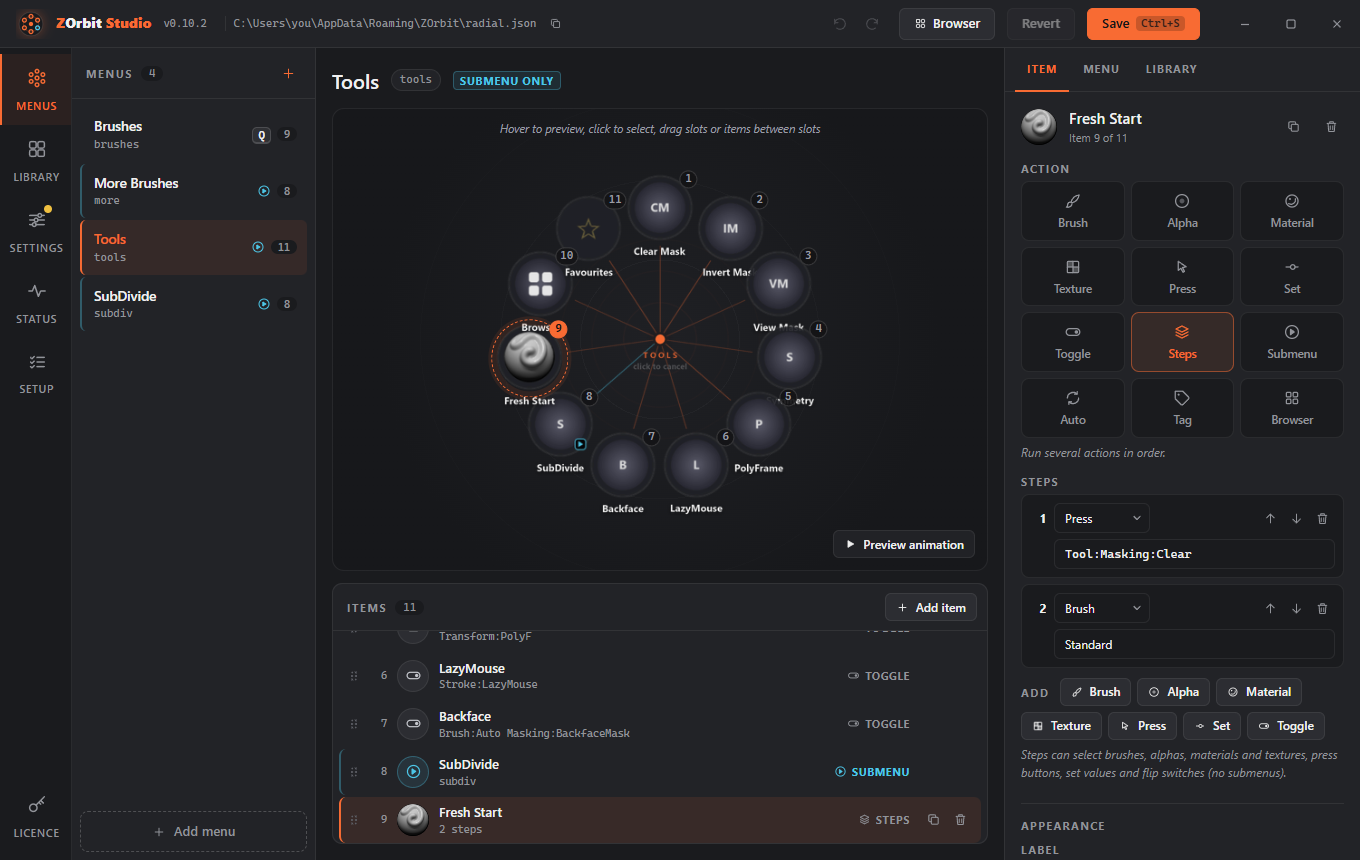
{"steps": [{"press": "Tool:Masking:Clear"}, {"brush": "Standard"}],
 "label": "Fresh Start", "icon": "Standard"}
Steps run in order. Each step is a brush, alpha, material, texture, press, set or toggle. Steps cannot open menus, cannot contain more steps, and cannot hold tag or browser items. Without an icon, a steps item uses the thumbnail of its first brush, alpha, material or texture step, or a placeholder if it has none.
Submenu
{"menu": "more", "label": "More Brushes"}
"more" is the id of another menu in the file. Moving the cursor onto the submenu's slot (or flicking past it) opens the new ring centred on that slot. If you are still holding the hotkey, it stays in hold-and-release mode. Releasing or clicking on the submenu's direction before you reach the slot opens it centred on your cursor, in tap-and-click mode. See Pick modes.
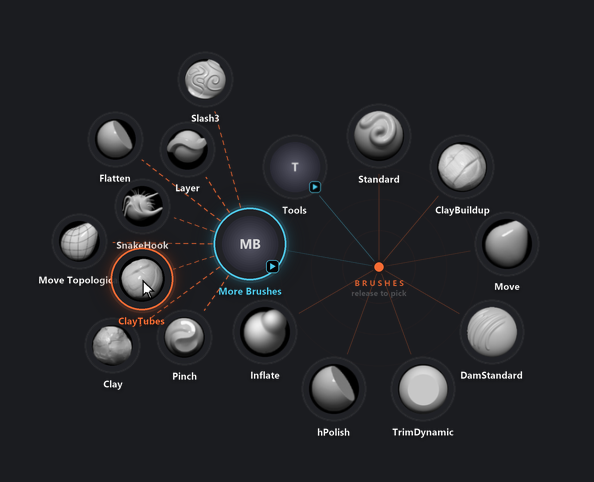
A submenu can open another way. Give its menu "fan": true (or switch on Fan out when opened from another menu in the menu settings in Studio) and its items spread out in an arc beyond its slot, joined to it by dashed lines, instead of a new ring opening on the slot. The ring you came from stays visible. An item of a fan can itself be a submenu of a fan, and it fans out further (up to three deep). The option only matters when the menu is opened as a submenu. A menu with a hotkey still opens as a normal ring when you press it. See Pick modes for how to pick from a fan.
Auto
{"auto": "brush"}
"brush" is the only value. An auto slot holds a brush that ZOrbit picked for you, not one you pinned. Every brush you pick from a ring or from the browser scores a point, and points fade with a half-life of two weeks, so last week's brushes count for more than last month's. A menu's auto slots hold its best-scoring brushes, leaving out any brush that menu already has as an ordinary item.
The ring does not reshuffle under your hand:
- A brush keeps its slot until another brush takes it.
- A newcomer has to be among the best brushes after two picks in a row before it takes a slot. It takes the slot of the lowest-scoring brush that has dropped out of the best.
- An empty slot fills straight away.
An auto slot that nothing has filled yet is drawn as a faint +, and picking it does nothing. The slot shows the brush it holds, with that brush's thumbnail and name, so it takes no label or icon of its own. Each menu learns on its own, keyed by the menu's id: renaming the id in Studio resets what its auto slots learned. In Studio, the Right now field in the inspector shows which brush an auto slot holds at the moment. The scores are kept in usage.json (see Files and logs).
Tag
{"tag": "blocking"}
{"tag": "detailing", "label": "Detail"}
{"tag": "favourite"}
The name is the tag's key, not its label. The key is made once, from the label, when the tag is created (Blocking becomes blocking), and it stays the same when you rename the tag, so slots keep working. In Studio you pick the tag from a list and never need to type the key. See Tags.
The slot opens a fan of every installed item with that tag. The brushes come first, most used first (the same count that fills auto slots, so their order can shift after you pick). Then come the alphas, materials and textures with that tag, by name. A fan holds up to 12 slots. If the tag has more items, the last slot is More..., which opens the browser on the tab of the first item in the fan, on that tag. Picking a brush from the fan works like any brush pick and counts towards auto slots. Picking an alpha, material or texture works as it does from the browser. If there is no room for a fan, the tag's items open as a normal ring. The slot is a disc in the tag's colour with a tag symbol and a submenu badge. Without a label, it is named after the tag.
A tag that has no installed items is a faint tag symbol, and picking it does nothing. So is a key that is not in tags.json, which is also listed as a problem ("tag 'x' does not exist; the slot stays empty").
The favourite key is the built-in Favourites tag (see Tags). A {"tag": "favourite"} slot opens a fan of
your starred items, in the same order as any tag, with the same 12-slot cap and More... slot. It is drawn with a
star instead of the tag symbol. New installs have one in the starter Tools menu.
Browser
{"browser": ""}
{"browser": "blocking", "label": "Blocking"}
{"browser": "", "kind": "alpha", "label": "Alphas"}
Opens the browser window. kind chooses the tab it opens on: brush (the default), alpha, material or texture. Nothing is sent to ZBrush until you pick an item in it. "" shows every item of that kind; a tag key opens it on that tag. A key that is not in tags.json is listed as a problem and the browser opens unfiltered. Without a label, the slot is called Browser, or the tag's name when it filters. In Studio, the Shows select in the inspector sets kind, and the Tag filter field lists your tags.
Labels and icons
label: text shown under the slot. Long labels are shortened with an ellipsis.icon: a brush name, the path to a.zbp, or the path to a.pngfile. Without one, brush, alpha, material and texture items use the item's own thumbnail, and astepsitem uses the thumbnail of its first asset step. Other items show a round placeholder with a short text.