Getting started
The basics
ZOrbit is two things that work together:
- a small app that watches for your hotkeys and draws the ring, and
- a plugin inside ZBrush (the bridge, see How ZOrbit talks to ZBrush) that carries out what you picked.
You do not start either by hand. ZBrush loads the plugin when it starts, the plugin starts the app, and the app quits when ZBrush closes. The app has an icon in the notification area: left-click it to open Studio (The tray icon lists its other commands).
With ZBrush in front, press Q. The ring opens centred on your cursor. Pick a slot (see Pick modes) and ZBrush does what the slot says.
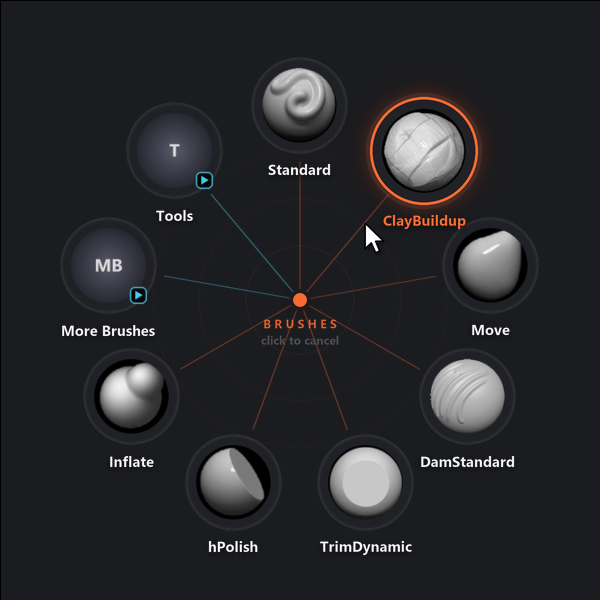
Slots are laid out clockwise starting at the top. A slot with a small arrow badge opens another ring. A small fan badge means its items fan out from that slot instead. The menu's title and a short hint sit in the middle.
First steps
- Open ZOrbit Studio from the Start menu (or from ZBrush: Zplugin > ZOrbit > Studio).
- On the Menus screen, pick a menu on the left. The ring preview in the middle is drawn by the same code that draws it inside ZBrush.
- Drag brushes from the Library onto the ring, or use Add item for buttons, sliders and switches.
- Click Save (Ctrl+S). The next time you open the ring in ZBrush it uses your changes. There is no need to restart anything.

Next: ZOrbit Studio covers the editor, Menus and items every item type, and Appearance every setting.