Hotkeys and picking
Hotkeys
A menu hotkey is written like this:
Q Alt+G Ctrl+Shift+1 F9 `
- Keys: letters, digits, F1 to F24, and
space tab enter backspace insert delete home end pageup pagedownand the punctuation keys` - = [ ] \ ; ' , . /. - Modifiers:
Ctrl,Alt,Shift, in any combination, joined with+. - Each hotkey can belong to only one menu. Duplicates are reported as problems and ignored.
- A hotkey only works while ZBrush is the front window. In every other program the key behaves normally. The browser hotkey is the one exception: it also works while the browser is in front, where it hands the keyboard back to ZBrush.
- Keys sent by other programs (macro tools, for example) are ignored.
- Press the hotkey again while its ring is open to close it. Esc also closes the ring.
- The browser has a hotkey of its own,
browser.hotkey, written the same way (see Browser hotkey). It cannot be a key a menu already uses: the menu wins and the browser hotkey is reported as a problem. It is swallowed like a menu hotkey. Press it again while the browser is in front to hand the keyboard back to ZBrush; the browser stays open.
By default a menu swallows its hotkey: ZBrush never sees it, so it does not also run its own shortcut for that key. Set "swallow": false (or switch it off in the menu settings in Studio) if you want the key to keep working in ZBrush too.
Pick modes
There are two ways to pick, and the same hotkey does both.
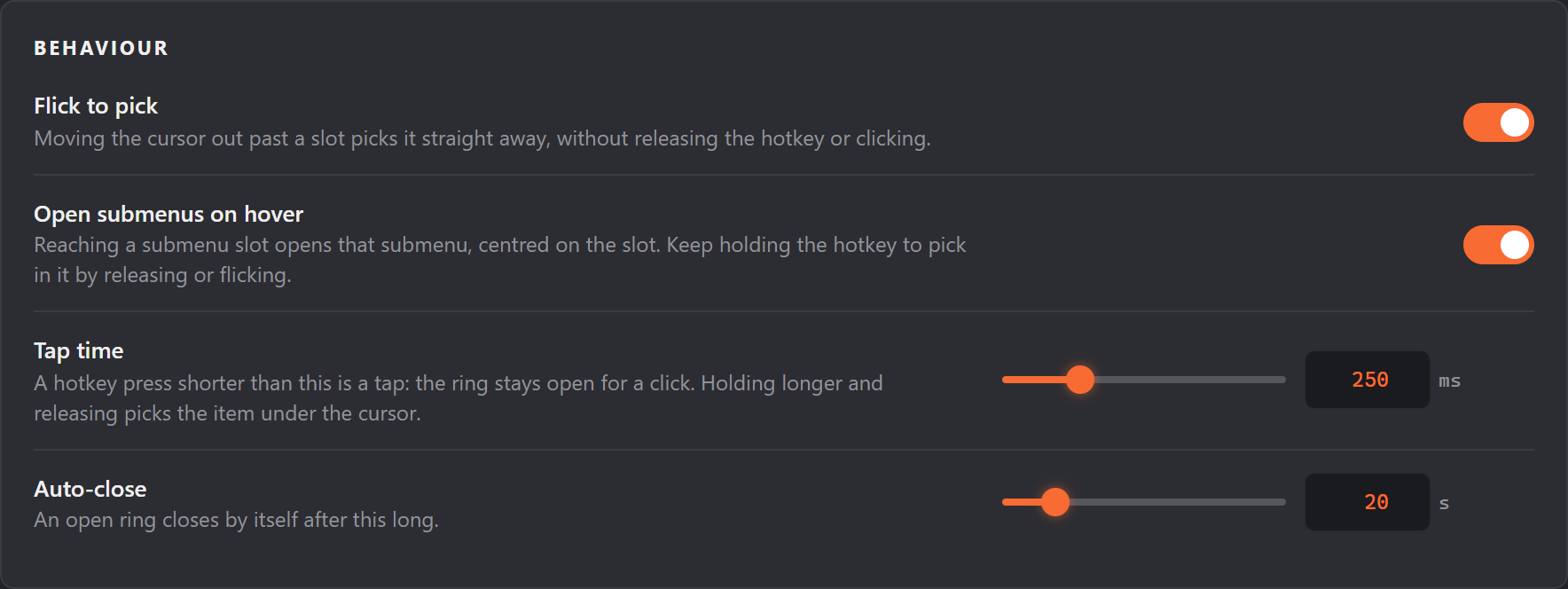
Hold and release. Hold the hotkey, move the cursor toward a slot, and release. The slot under the cursor is picked. If the cursor is in the middle (the dead zone) when you release, nothing is picked and the ring closes.
Tap and click. Tap the hotkey quickly (shorter than the tap time, 250 ms by default). The ring stays open. Move to a slot and click it. The middle of the ring, a right-click, Esc, a click outside the ring, or the auto-close timer all cancel without picking.
Flick. In either mode, move the cursor out past a slot's outer edge and that slot is picked straight away. You don't have to release the hotkey or click. Press the hotkey, flick toward a slot, and it's done. Turn this off with Flick to pick in Settings ("flick": false). With flicking on, moving out of the ring always picks something, so a click outside the ring can no longer cancel. Use the middle of the ring, a right-click or Esc instead.
Submenus. Move the cursor onto a submenu's slot and the submenu opens right away, centred on that slot. If you are still holding the hotkey, you stay in hold-and-release mode, so one movement can go into a submenu and on to one of its items:
- Release over an item, or flick past it, to pick it.
- Release in the middle (where the submenu slot was) to keep the submenu open and click an item.
Turn this off with Open submenus on hover in Settings ("hover_submenus": false). Submenus then open when you release or click on them, as before.
Fans. A submenu whose menu has "fan": true opens as a fan instead of a new ring: its items spread out beyond the submenu's slot with dashed lines to each one, and the ring you came from stays where it is. The rules are the same as above:
- Release over a fan item, click it, or flick past it to pick it.
- Release on the fan's own slot to keep the fan open and click an item.
- A fan item that is itself a fan submenu fans out further, up to three deep, and the earlier fans stay visible.
- Moving the cursor out of a fan closes it.
- If there is no room for the fan (the ring is near a screen edge), or the fan would lead back to a menu that is already open, the submenu opens as a normal ring instead.
Notes:
- A slot is chosen by the direction of the cursor from the centre, not by hitting the icon. You can point toward a slot and release without moving far. Within the dead zone radius no slot is chosen. Each slot covers at most a quarter of the circle, so in a ring with one to three slots, pointing away from all of them chooses nothing.
- The slot under the cursor grows slightly, gets an accent ring, and its label changes colour.
- The ring never takes keyboard focus, so ZBrush keeps working normally behind it.
- If the cursor is near a screen edge, the ring is moved to stay fully on screen.
- With Flick to pick off, a click outside the ring cancels it, but that click also reaches ZBrush underneath, so it can land a stroke or press a button. Esc or a right-click is the safer way to cancel.
- A menu hotkey is swallowed in ZBrush's own text fields too, so a plain letter such as Q cannot be typed there while a menu uses it. Pick a key you do not type in ZBrush (see Pressing the hotkey does nothing).